How to Convert MyHeritage Raw Data to AncestryDNA Format for Free
Map RSID, chromosome, position, and split the RESULT column to get a tab-delimited AncestryDNA-style TXT. The manual column reshuffle is free; HealthOS accepts MyHeritage CSV directly. Converting the layout does not guarantee acceptance by AncestryDNA.
# How to Convert MyHeritage Raw Data to AncestryDNA Format for Free
You can convert a MyHeritage raw data CSV to an AncestryDNA-style TXT file by mapping four fields: RSID to rsid, CHROMOSOME to chromosome, POSITION to position, and splitting RESULT into two allele columns. The manual column reshuffle described below is free. HealthOS also lists a converter at https://healthosx.com/dna/convert. Converting to an AncestryDNA-style layout does not guarantee that AncestryDNA will accept the file; check the destination service's current policy before uploading. If you only need the HealthOS DNA report, skip this conversion: HealthOS DNA accepts MyHeritage CSV directly at https://healthosx.com/dna.
| MyHeritage CSV | AncestryDNA TXT | |
|---|---|---|
| Header | RSID,CHROMOSOME,POSITION,RESULT | rsid [tab] chromosome [tab] position [tab] allele1 [tab] allele2 |
| Separator | comma | tab |
| Allele columns | one column, e.g. CT | two columns, e.g. C and T |
| Example row | rs7412,19,45412079,CT | rs7412 [tab] 19 [tab] 45412079 [tab] C [tab] T |
Scroll the table sideways for the rest →
Bracketed [tab] labels are illustrative; the real tab-separated file uses actual tab characters.
MyHeritage CSV versus AncestryDNA TXT: what actually differs
MyHeritage exports a comma-separated CSV with four columns. A row looks like rs7412,19,45412079,CT. AncestryDNA exports a tab-separated TXT with five columns. The same marker keeps the rsID, chromosome, position, and the two alleles, just with tabs between fields and the alleles split into separate columns.
The real work is splitting RESULT. If RESULT is CT, allele1 becomes C and allele2 becomes T. If the result has a single letter or an unusual call, the conversion needs a rule, and that rule is where many handmade conversions go wrong.
Conversion is a column reshuffle plus a split, not a new genotyping run. The DNA calls themselves stay the same.
How to convert MyHeritage raw data to AncestryDNA format for free
HealthOS lists a converter at https://healthosx.com/dna/convert. Unzip the MyHeritage download first, follow the converter's current instructions for upload and output, and check the output before using it in another tool.
If you want to do it manually, the steps are:
- Unzip the MyHeritage download. The raw file is the CSV inside.
- Open the CSV in a plain text editor, not Excel, to keep leading zeros and chromosome labels intact.
- Change the header from
RSID,CHROMOSOME,POSITION,RESULTtorsid,chromosome,position,allele1,allele2, with tab characters between each field. - For each row, write the first three columns, then split
RESULTafter the first character.AGbecomesAthenG. - Save as a plain
.txtfile with tab separators, not a comma-separated file.
Do not open and save the file in Excel unless you are certain it has not mangled rsIDs or dropped zeros. That is a common mistake in DIY file conversion.
Edge-case rules: no-calls, single-letter results, X/Y/MT labels, and genome build
- No-calls: Do not guess a missing call. If MyHeritage
RESULTis--,0, empty, or any other missing call token, use the target tool's documented no-call token for allele1 and allele2 when known, otherwise drop the row. Never replace a no-call with an assumed allele. - Single-letter results: Do not guess whether a single letter means homozygous or haploid. For a haploid call such as Y or MT, copy the single letter into both allele columns only if the target tool requires two columns and documents that behavior. If the target tool does not document it, drop the row or mark it as no-call, not as a guessed homozygous call.
- X/Y/MT labels: Keep chromosome labels exactly as the source file uses unless the target tool's documentation gives an explicit mapping. Do not convert X to 23, Y to 24, or MT to 25 or 26 on a guess.
- Genome build: A column reshuffle does not change the genome build. Do not add or subtract base positions to try to make a different build. If the destination requires another build, use a liftOver tool with chain files from the source build to the target build.
Check the output before uploading elsewhere
Before you upload a converted file, verify the header, delimiter, chromosome labels, allele split, and no-call representation against the target tool's documentation.
- Header: the target tool may expect
rsid,chromosome,position,allele1,allele2. - Delimiter: confirm the file is tab-separated, not comma-separated.
- Chromosome labels: check whether the tool expects
1through22,X,Y,MT, or another scheme. - Allele split: confirm
RESULTbecame two separate allele columns. - No-call representation: check how the target tool documents missing calls.
- Acceptance: a valid five-column layout does not guarantee that AncestryDNA or any destination service will accept the file. Check the destination service's current policy.
Which markers drop, and which stay
A simple format conversion copies the markers that are in the source file. It does not create new markers, and it does not turn MyHeritage-only markers into AncestryDNA-only markers. Some converters or downstream tools may drop markers with no rsID or markers outside the target tool's expected set. That is a coverage or identifier issue, not a formatting issue. Markers with no rsID may need to be dropped or rewired, depending on the converter and target tool. Some allele values may need special handling. Check the first 50 rows after conversion to see which rule the tool applied.
When the converted file may be compatible with other DNA tools
A converted file may be format-compatible with tools that accept raw data in AncestryDNA format and only require the five-column structure. Downstream tools may still have marker, strand, build, or quality requirements, so check the target tool's documentation before relying on the output.
It is not a lab-certified clinical file. If a clinician or lab asked for a diagnostic file from the original testing company, this conversion does not change the chain of custody or add regulatory approval. The genotype calls should remain the same as in your MyHeritage file, but the file format does not upgrade the source.
One common follow-up: do you need the converted file for the free DNA report tool at https://healthosx.com/dna? No. That tool accepts MyHeritage CSV directly. You can also use https://healthosx.com/dna/check to check a file before using it elsewhere. The convert tool is for other tools that only recognise AncestryDNA layout.
What people get wrong about strand and orientation
A simple format conversion should copy the base letters exactly as they appear in the MyHeritage file, but check the converter's behavior for no-calls and unusual values. It should not flip alleles to the forward strand or match to a reference unless the converter says it does. If a downstream tool asks for forward-strand alleles, check that tool's requirements before converting. The reverse mistake, manually switching A to T or C to G because you think it needs complementing, turns a correct call into a wrong one.
No-call rows are the second edge case. Check the target tool's documentation for how it represents missing calls. If the target tool rejects a particular no-call marker, convert or drop those rows according to what the tool tolerates. Do not replace a no-call with a guessed allele.
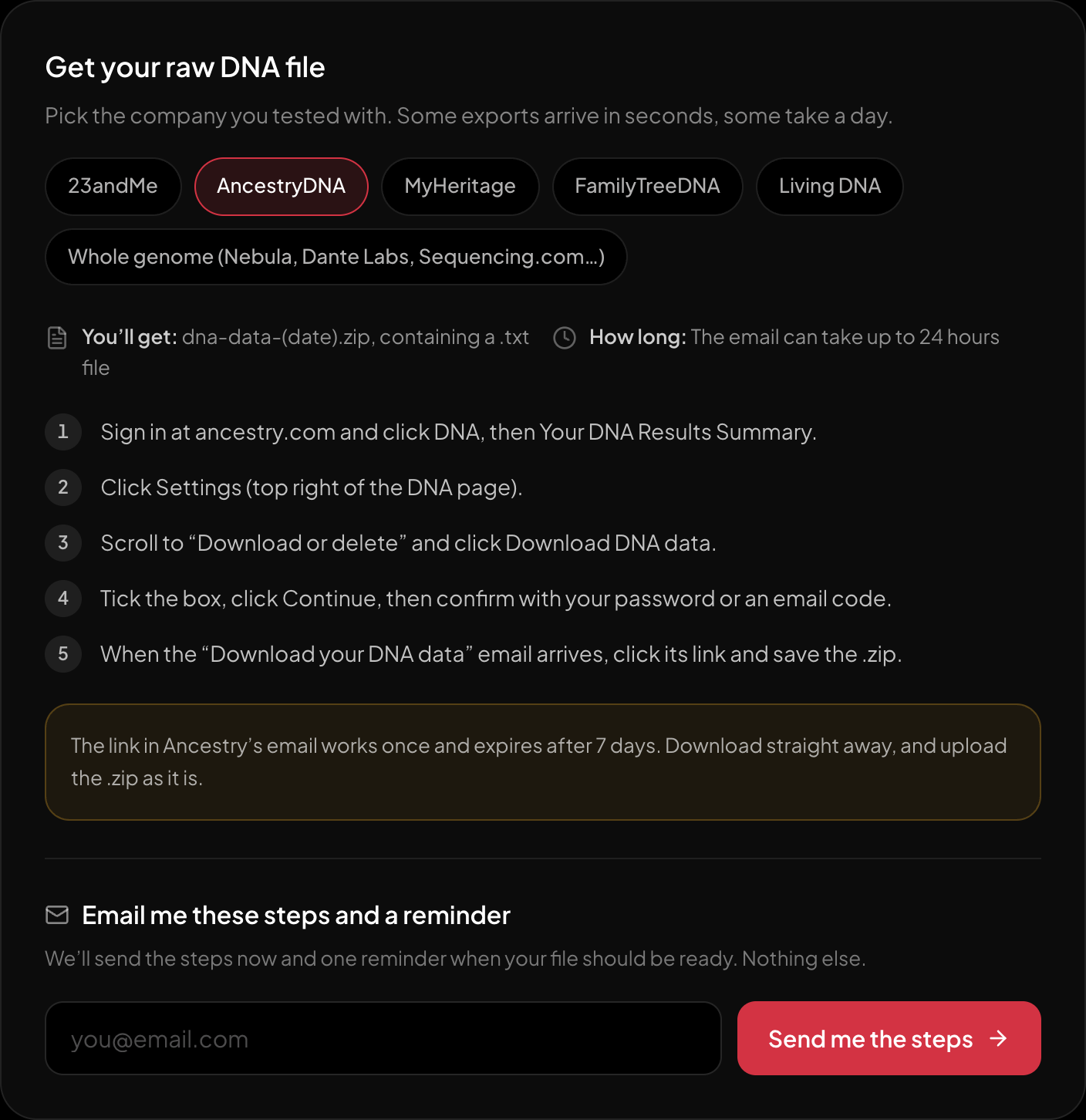
The download steps for AncestryDNA, on the page itself.
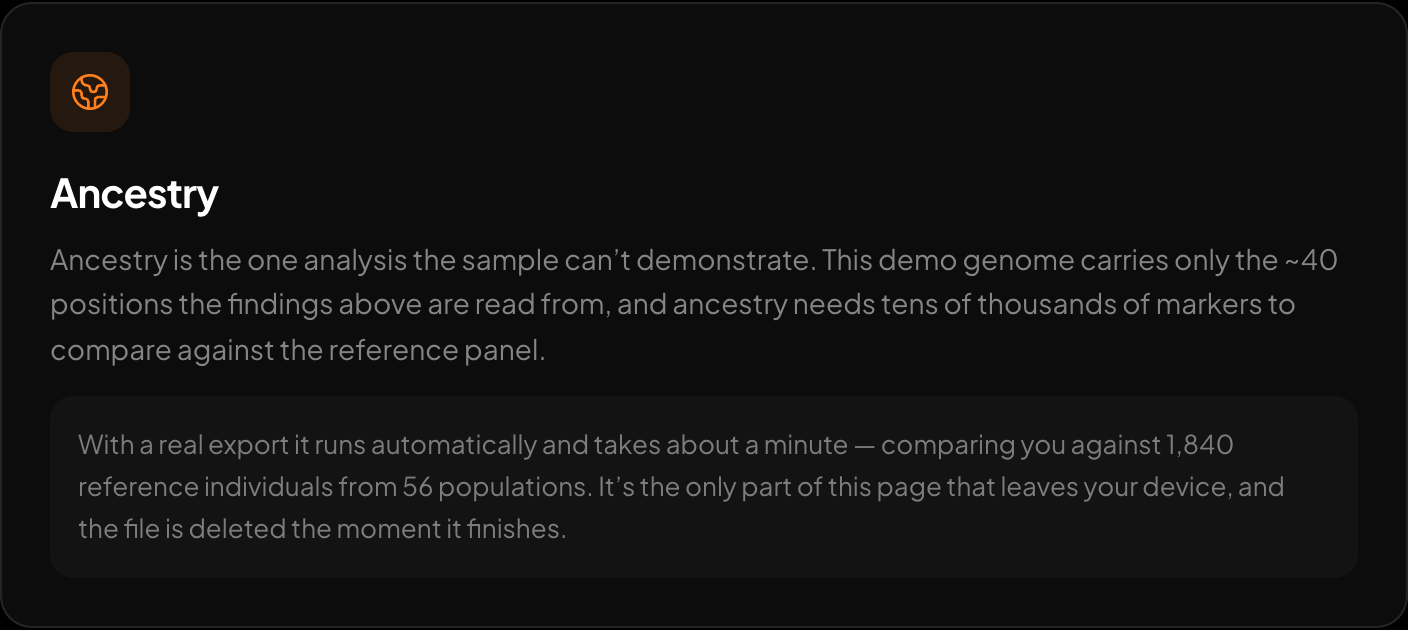
Ancestry across 15 regions and 157 reference populations.
If you have a MyHeritage file and want to see what it says without fighting formats, upload it directly at HealthOS DNA. The free tool accepts MyHeritage CSV directly. If another tool still insists on AncestryDNA layout, use https://healthosx.com/dna/convert first and check the output.
New to raw DNA files? Start with the full guide: How to Download & Analyze Your 23andMe Raw Data Free
Written by
HealthOS Research